
FlowJo v10 is available for Windows and Macintosh computers. The application is free to download and install, but requires a license to authenticate/log in and load or view FCS data files.
Installers can be download from the FlowJo website Download v10 page.
Individual licenses can be purchased from the FlowJo Customer Order Center. For group license quotes, please reach out to flowjooffice@bd.com. A FREE 30 day trial is also available.
With an active FlowJo license you can start analyzing own data or explore with our tutorials.
FlowJo v10 Compatibility Table
Installation:
1) Download the latest FlowJo v10 installer for your computer OS (Windows or Mac).
2) Run the installer and follow the prompts.
Windows PC Installation (Mac instructions below):
Once the download completes. Double click on the FlowJo 10.x.x.exe file to launch the installer. Do not be alarmed if you see this security warning (see below) as this may or may not occur. If this occurs, your system is working correctly and is normal. Click Yes to continue:

The installer will begin downloading and you should see a progress bar:

Once the progress bar reaches 100% you will see the Introduction screen. Click “Next” to continue with installation.

The next screen is the Choose Install Folder. In the bottom right it asks “Where would you like to install FlowJo?” We strongly recommend that users do not change this and leave it as the default path C:/Program Files/FlowJo 10.x.x. Point releases or updates will install to their own version specific folder. Do not overwrite an existing installation of FlowJo v10 when updating to a new v10 release.
After making your selection, click “Next”.

The following screen will ask you about shortcut placement. The FlowJo installer allows you to place a shortcut for FlowJo into any place on your computer you like. If this is a computer workstation with many users, you may want to select “Create Icons for All Users”. This will make an icon for FlowJo in every user’s folder. When finished making your selections, click “Next”.

The next screen will be the Pre-Installation summary screen. This screen shows the choices you have made so far. If you need to make changes, you can click the “Previous” button to return to any of the previous pages. Otherwise, click “Install”: (version 10 is a Java application so the installer will install the Java Runtime Environment and the FlowJo related files).

The following progress screen will appear. This step may take a while.

Once the installation finishes you will get the Install Complete screen. Click “Done”. Congratulations! You’ve successfully installed FlowJo v10!

For any problems or troubleshooting with the installation process please email flowjo@bd.com.
Mac Installation:
First download v10 for Mac OSX. Depending on your browser, you may get an icon at the bottom left showing the FlowJo-OSX64-10.X.dmg file being downloaded (Chrome) or a pop-up screen asking you what you want to do with the file (Firefox). Or simply download the file to your downloads folder (Safari).

If using Firefox, select “Save File”. The file will download to your downloads folder.

Once the FlowJo-OSX64-10.X.dmg file has finished downloading, open the FlowJo-OSX64-10.X.dmg from your browser or double click on the file in your downloads folder. A window will appear displaying both the FlowJo program icon and a folder named plugins.

Highlight both the Icon and the plugin folder, then drag and drop them to your Applications folder. FlowJo is now installed.
Double click on the FlowJo application within your Applications folder to open, or drag the FlowJo Icon from Applications to your Dock for quick access.
When you open FlowJo for the first time you may see the a warning that FlowJo is an application downloaded from the Internet. Are you sure you want to open it? This is completely normal, just click Open


After installing FlowJo on the computer, eject the installer.

If you have any trouble with installation please let us know by emailing flowjo@bd.com
Additional Notes on Mac OS Compatibility:
Mac OS Tahoe (OS 26.4+):
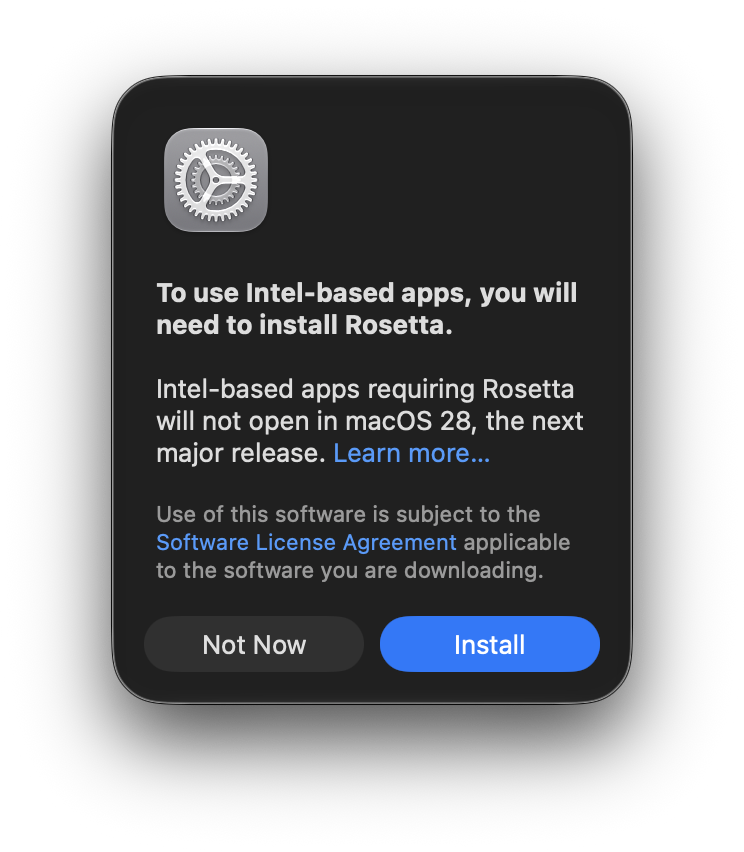
- There is a notification introduced in Mac OS Tahoe, indicating that Intel-based applications will no longer be supported starting with macOS 28, which is anticipated to be released in Fall 2027.
- FlowJo™ v10 will be updated ahead of the release to ensure native compatibility with ARM-based Mac devices. In the meantime, the current version (v10.10.2) will continue to be fully supported on Mac OS through version 27.
Mac OS 27:
- Mac ARM (M-Series) computer users who update to Mac OS 27 mat be prompted to re-install Rosetta software when they launch FlowJo v10.10.2 or older releases after the update. Rosetta software is required to run FlowJo v10.10.2 or earlier v10 releases on Mac OS 27.
See Also:
FlowJo v10 OS Compatibility Table