
Extended Offline Tokens can be created through BD Access Portal to use FlowJo 11 while offline.
Extended Offline Tokens (EOT) can be created for BD Access Portal allowing users to work for extended periods of time while offline. Extended offline tokens can be used to provide an offline license for a single device for 14 days. Extended Offline Tokens should only be used if a user only wants access to a single device and the user intends to be offline for over 24 hours. Users who intend to be offline for less than 24 hours can access FlowJo™ using the 24 hour grace period that is automatically created each time the user logs in to BD Access Portal.
Warning: Checking out an EOT will limit your FlowJo™ access to that specific version (v10 or v11, not both) of FlowJo and that specific authorized device for the next 14 days. You will not be able to use your BD Access Portal account credentials to log into FlowJo™ on another computer for the full 14 day period. Extended Offline Tokens are not revokable or removable. Be sure you are creating your EOT for the correct computer.
Creating a 14 Day Extended Offline Token
1) Locate your device identifier/fingerprint
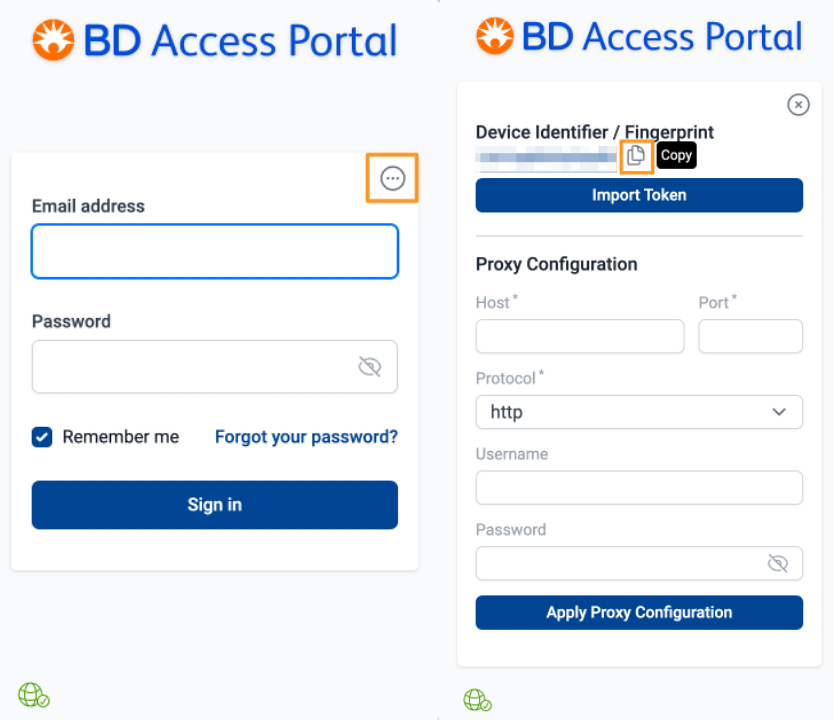
Using the device that you intend to use offline for the next 14 days, open BD Access Portal and locate the three dots in the top righthand corner. The "device identifier/fingerprint" should then be displayed.
2) Locate the Device on the BD Access Portal webpage
Use your portal email address and password to login to the BD Access Portal webpage (https://bdaccessportal.com/). Select the"License" icon on the lefthand side bar of the webpage. Clicking on the "License" icon will open a pane that lists the licenses associated with the portal account. Select "Manage" in the "Devices:" section for the FlowJo™ license.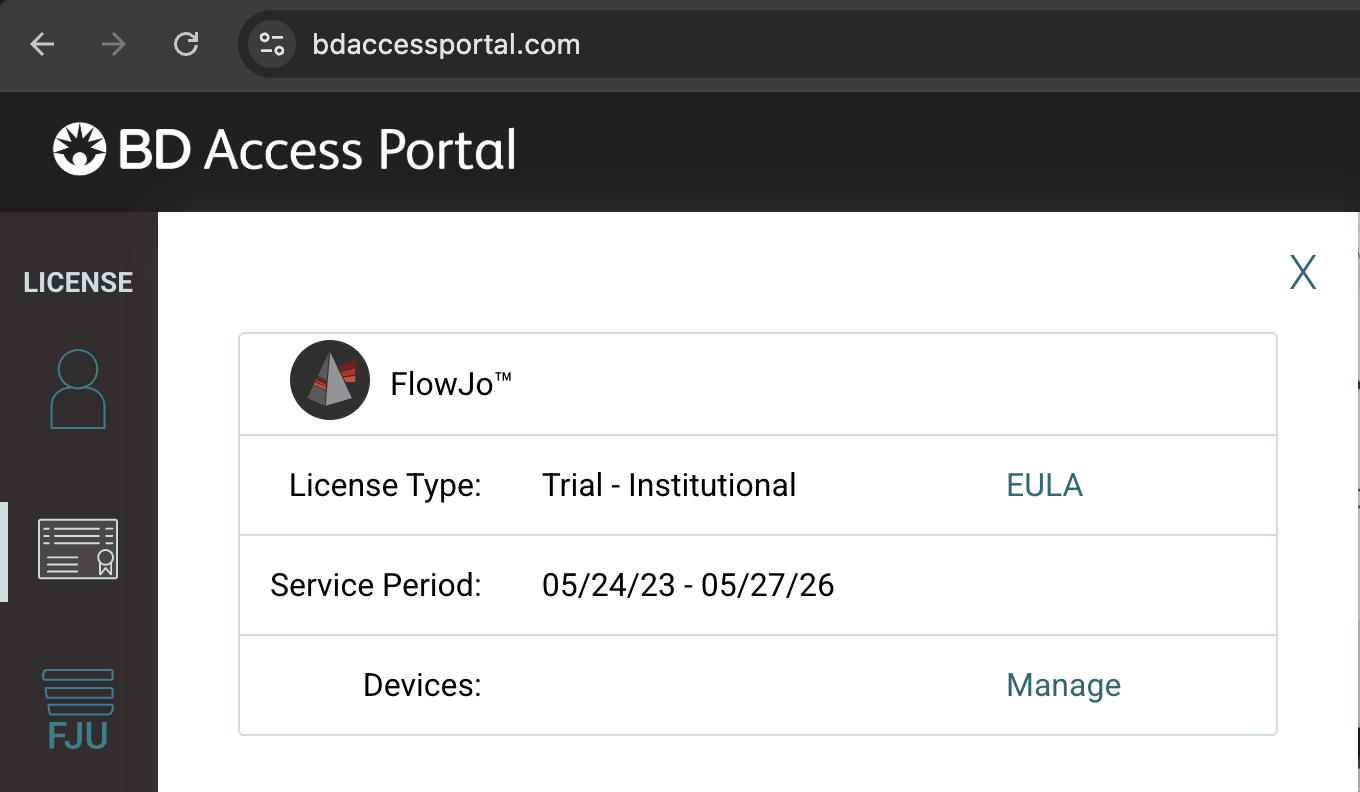
This will open a list of the devices that have been accessed using this BD Access Portal account. Locate the device ID that matches the Device Identifier shown in the BD Access Portal application. Press "Get Offline Token" for the matching device ID. This will open a window describing the limitations of the 14 day Extended Offline Token. Select "Create EOT" to generate a 14 day offline token for the selected device. Make sure you select the correct device! The offline token can only be used for the selected device and the portal account can not be used to login to any other devices for the next 14 days.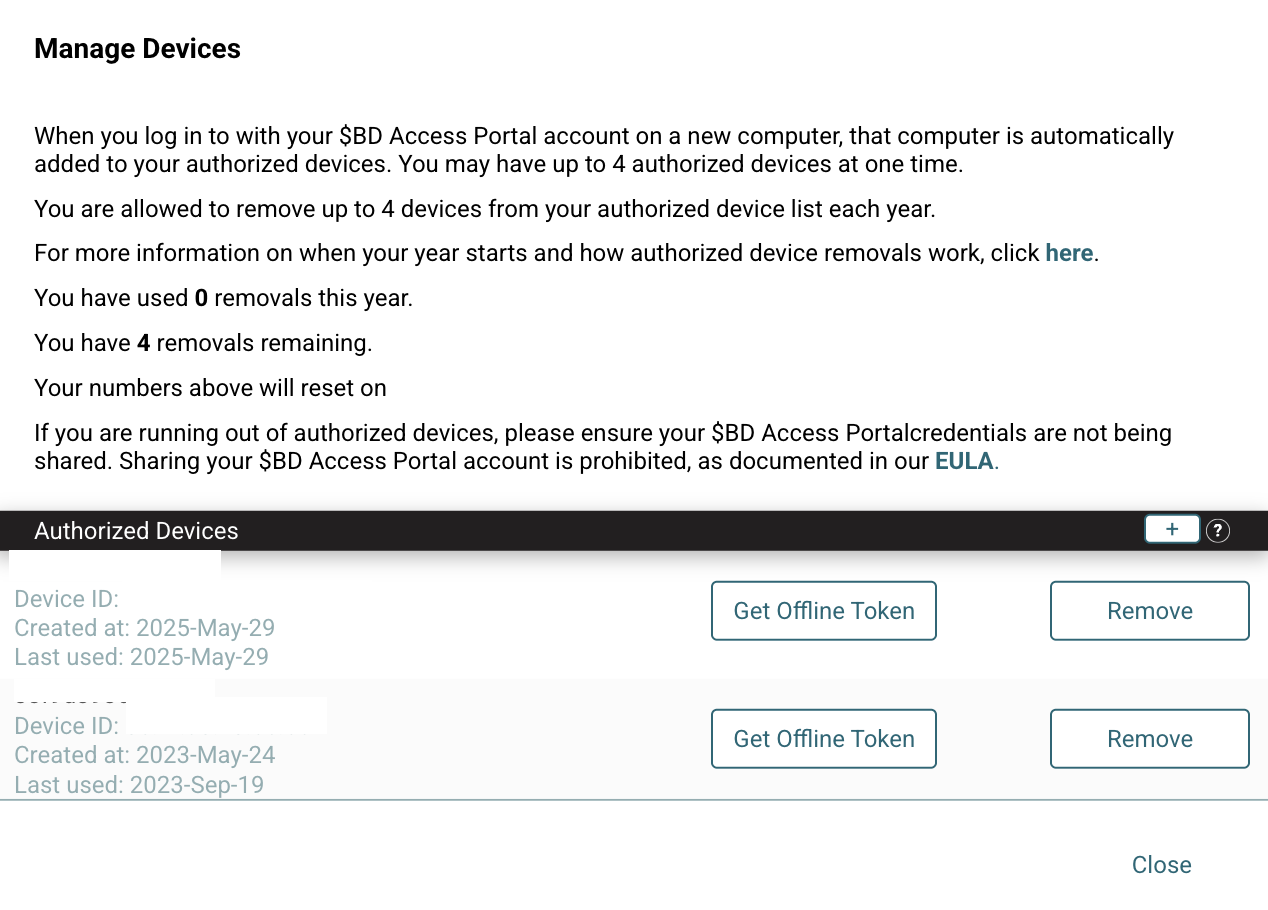
3) Import the Offline Token
On the BD Access Portal webpage there should now be a "Export Offline Token" button. Press that button and save the Extended Offline Token somewhere on your computer.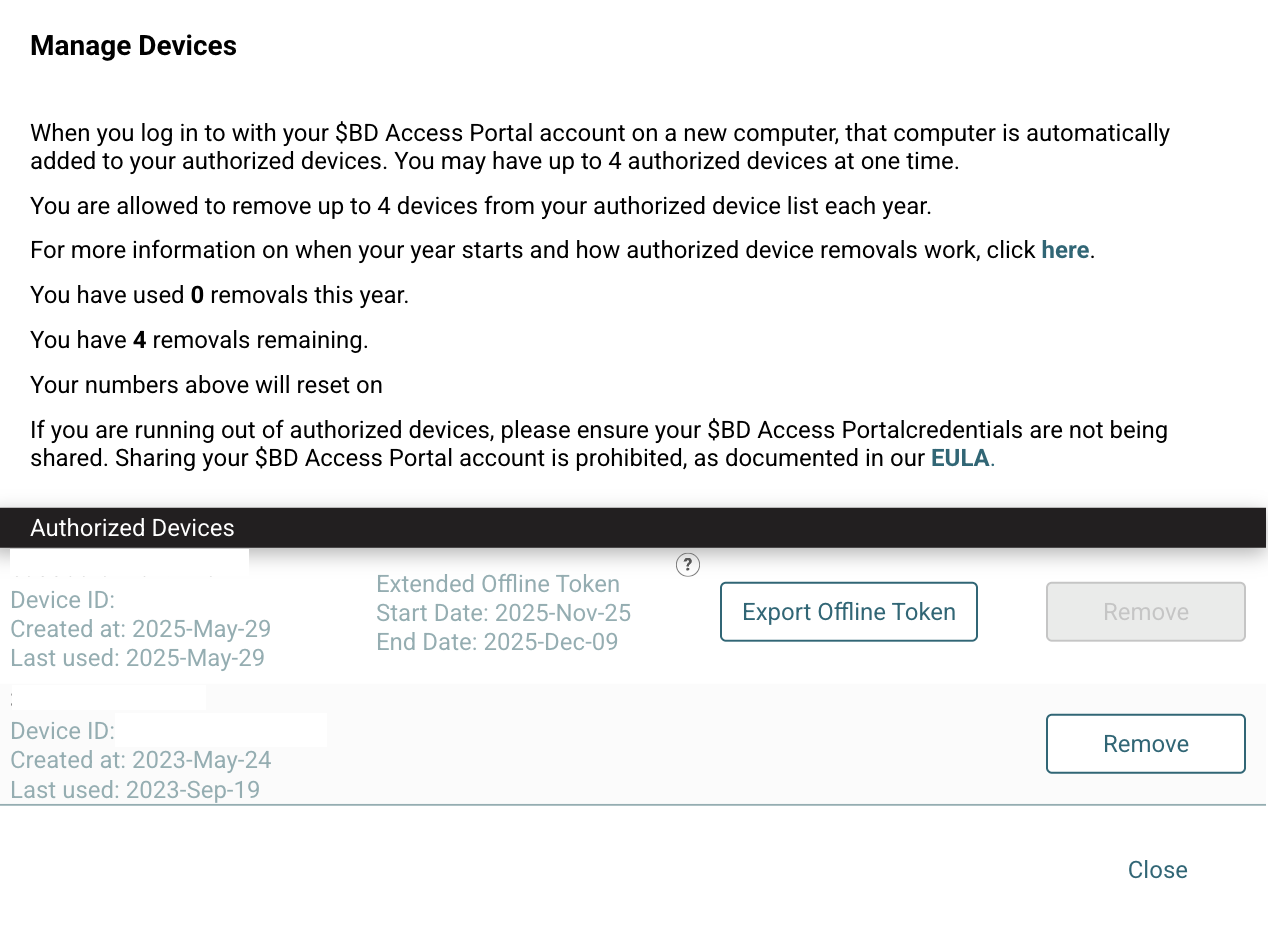
Open BD Access Portal and click on the three dots in the righthand corner to display the device identifier. Press the "Import Token" button and select the extended offline token that we just created on the computer. After selecting the Extended Offline Token a "Success" message should display. Return to the BD Access Portal login screen by clicking on the "x" icon in the top righthand corner. Login to the BD Access Portal using your email address and password. For the next 14 days you should now be able to login to the BD Access Portal even while the device is offline.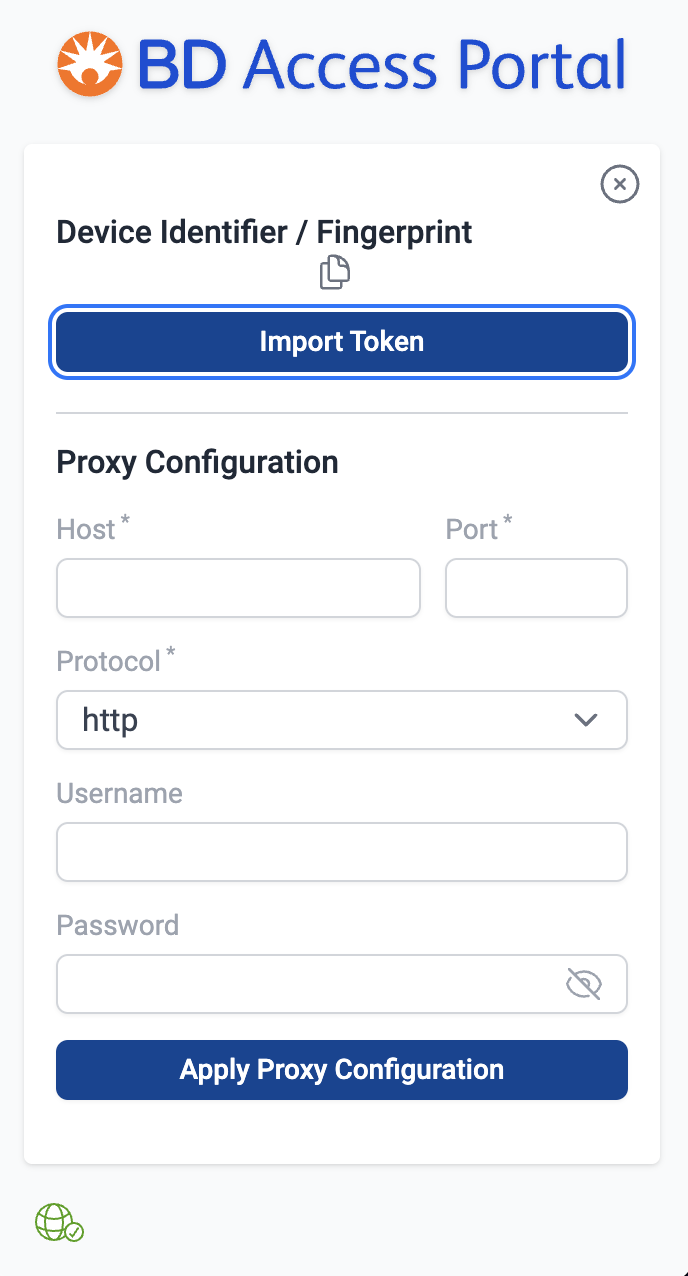
Additional considerations
- An extended offline token can not be cancelled once it is created. After creating an extended offline token the BD Access Portal account can not be used to login to FlowJo™ on any device aside from the device that the token was created for. The portal account can be used on other devices once the extended offline token expires after 14 days.
- The Extended Offline Token is version specific. An extended offline token created for FlowJo version 11, can't be used to access FlowJo 10. For the 14 days that the version 11 extended offline token exists, the portal account can not be used to login to FlowJo version 10 on any computer.